Assign Rooms Based on Guest Preferences
Stay is enhanced to allow users to assign rooms to multiple reservations based on the guest’s preferences in the following screens:
-
Tape Chart ➜ Assign Rooms
-
Batch Operations ➜ Check-In ➜ Assign Rooms
For example, guests might request rooms that include or exclude features such as mini refrigerators and air conditioners. Guests who arrive together on the same day might request rooms located on the same building, floor or in proximity to each other.
Assignment of Rooms - Existing Functionality
Currently, the rooms are assigned to reservations based on the Room Assignment option selected in the Room Assignment tab of the Rooms Setup screen (All Settings ➜ General ➜ Rooms & Room Types ➜ Room Assignment). Rooms are assigned based on the following options selected:
-
Room Usage: When selected, the rooms are assigned based on their usage patterns. The room that is less frequently used will be assigned first.
-
Rack Order: When selected, the rooms are assigned based on the rack order of the rooms. The rooms with the least rack order value will be assigned first.
-
Room Revenue: When selected, the rooms are assigned based on the revenue generated for each room. The room with the lowest revenue will be assigned first.
Marking Rooms as Connected or Nearby
Users can mark rooms as Connected or Nearby from the Property Configuration tab of the Rooms Setup screen (All Settings ➜ General ➜ Rooms & Room Types ➜ Property Configuration ➜ More ➜ Connect/Nearby).
When users select rooms and mark them as connected, the room number of the connected room is displayed in the room number tile.
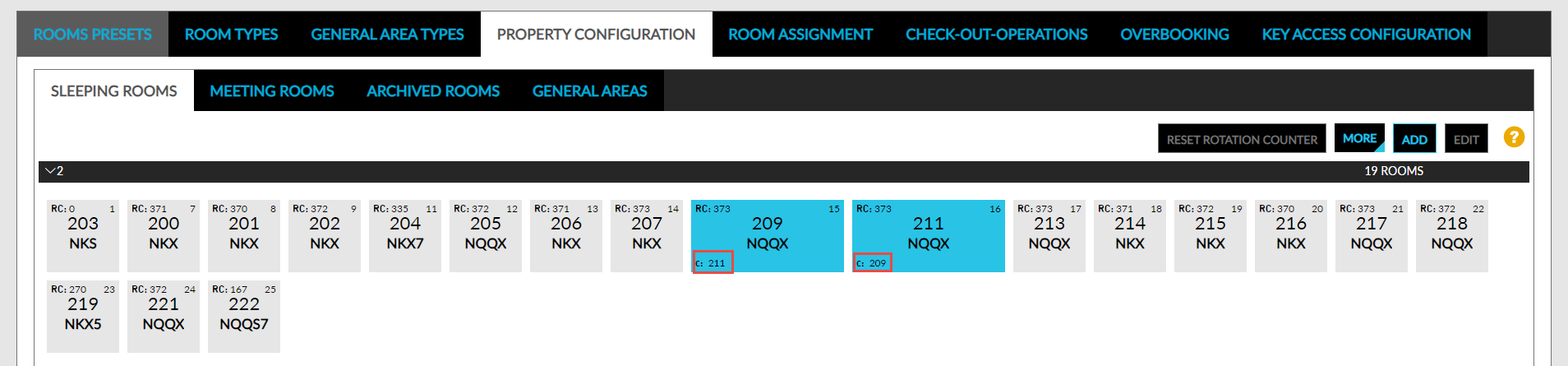
When users select rooms and mark them as nearby, the room number of the rooms that are in proximity are displayed in the room number tile.
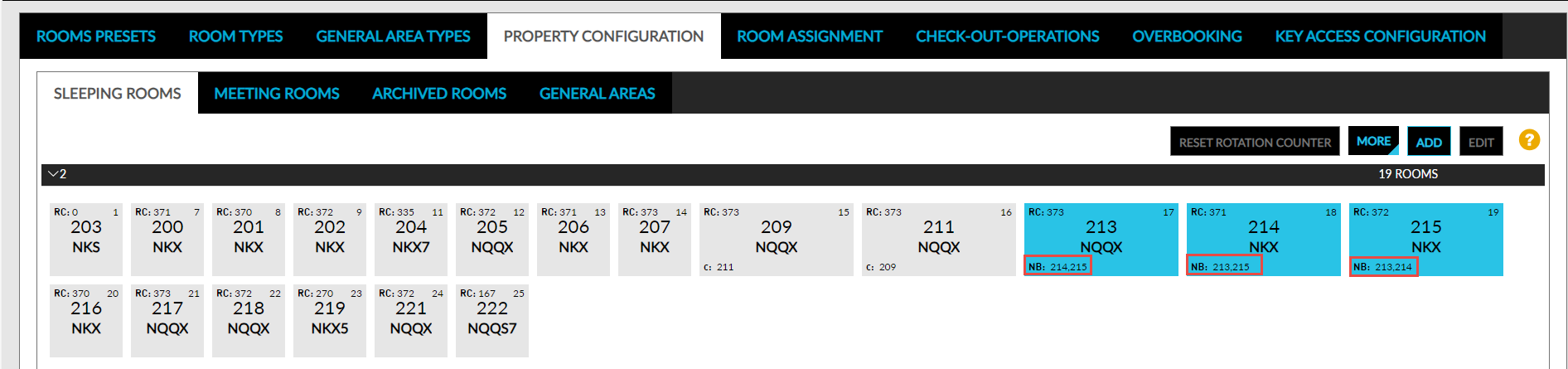
Rooms cannot be marked as connected and nearby at the same time.
Assign Guest Preferred Rooms
Users can assign rooms to multiple reservations from the mentioned screens based on the following new criteria:
-
Rooms that are nearby to each other
-
Rooms that are connected to each other
-
Rooms located in the same building
-
Rooms located in the same floor
-
Rooms that include selected features
-
Rooms that exclude selected features
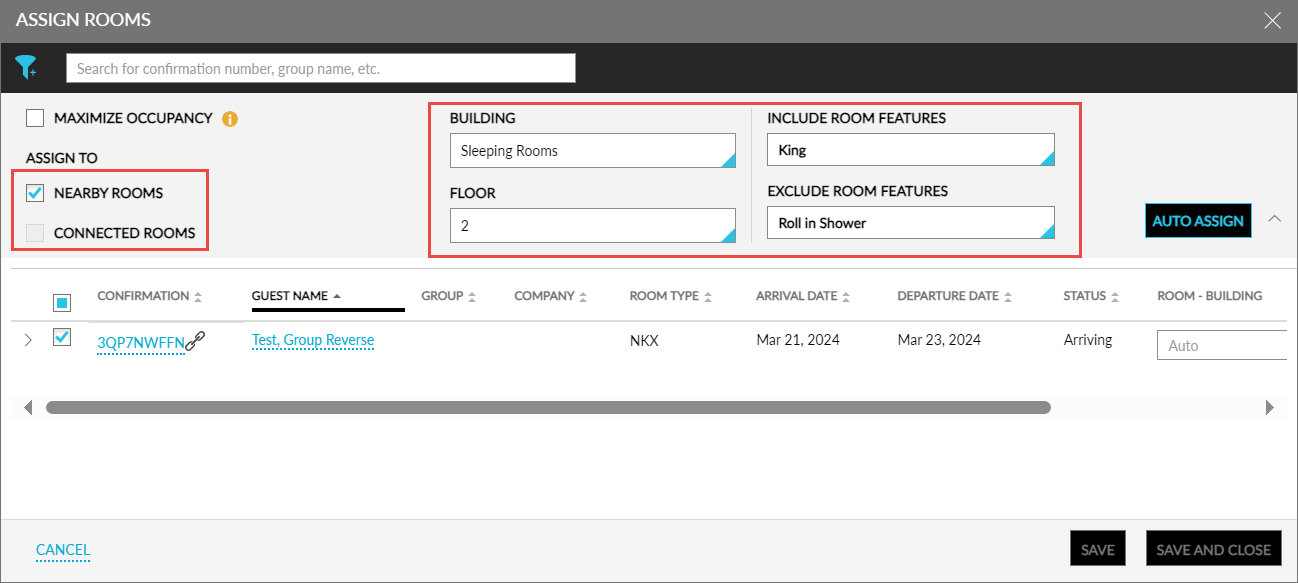
The following new fields have been added to the Assign Rooms pop-up screen that is accessed from the Tape Chart screen and the Check-In tab of the Batch Operations screen to help users assign the guest’s preferred rooms:
|
Field |
Description |
|---|---|
|
Include Room Features |
The drop-down list is enabled for selection when users select one or more reservations. The features that are available for the room types of the selected reservations are displayed. For example, if reservations from King and Queen room types are selected, the features available for these room types are displayed in the drop-down list. Once the features are selected by the users, the rooms for which the selected features are available are assigned to the reservations. |
|
Exclude Room Features |
This drop-down list displays the list of features in the property that have the Exclude from Auto Room Assignment flag enabled. Once the features are selected by the users, the rooms with the selected features are not assigned to the reservations. |
|
Connected Rooms |
When this checkbox is selected, the rooms that are marked as Connected are assigned to the selected reservations. For example, when users request connected rooms for 4 reservations, rooms will be assigned only when 4 connected rooms are available. When connected rooms are not available, the following message will be displayed: There are no connecting rooms available, and no other rooms will be assigned. This checkbox will be disabled for selection when the Nearby Rooms checkbox is selected. |
|
Nearby Rooms |
When this checkbox is selected, the rooms that are in proximity are assigned to the selected reservations. For example, when users request nearby rooms for 4 reservations, rooms will be assigned only when 4 nearby rooms are available. When nearby rooms are not available, the following message will be displayed: There are no nearby rooms available, and no other rooms will be assigned to the reservations. This checkbox will be disabled for selection when the Connected Rooms checkbox is selected. |
|
Building |
This drop-down list displays the buildings that are available at the property. By default, the Any building option will be selected. When there is only one building available at the property, the building is selected by default. When users do not select a building, rooms are assigned based on the other criteria selected by the users, or the Room Assignment option selected by the property. |
Rooms are assigned to the reservations based on the following order of precedence of the selection criteria:
-
Building
-
Floor
-
Include Features
-
Exclude Features
-
Nearby or Connected Rooms
When no rooms that match the selected criteria are available, the following message will be displayed: Failed: Rooms not found.
New Filter Options to Filter Reservations
The following new filter options have been added to the filter icon displayed in the following screens:
-
Batch Operations ➜ Check-In
-
Batch Operations ➜ Check-In ➜ Assign Rooms
-
Tape Chart ➜ Assign Rooms
|
Option |
Description |
|---|---|
|
Shared Reservations |
Allows users to retrieve the shared reservations for the selected arrival dates. |
|
Linked Reservations |
Allows users to retrieve the linked reservations for the selected arrival dates. |
|
Age Category |
Allows users to retrieve reservations for the selected age category. |
|
Length of Stay |
Allows users to retrieve reservations based on their lengths of stay. When users expand this option, the numbers from 1 to 31 are displayed. Based on the option selected, the reservations that match the selected length of stay are retrieved and displayed. |
|
VIP Status |
Allows users to retrieve reservations with the selected VIP statuses. |
|
Loyalty Program |
Allows users to retrieve reservations with the selected loyalty programs. |
The mentioned filters have also been added as new columns in the Check-In tab of the Batch Operations screen. The following details are displayed in these columns:
|
Column |
Description |
|---|---|
|
Age Category |
Displays the guest count of the age category associated with the reservation. |
|
Length of Stay |
Displays the number of nights the reservation is booked for. |
|
Status |
Displays the status of the reservation. |
|
VIP Status |
Displays the VIP status of the reservation. |
|
Loyalty Program |
Displays the loyalty program and the tier of the guest associated with the reservation. |
Users can select the preferred columns to be displayed in the Check-In tab on the Batch Operations screen from the Set Column Preference pop-up screen (Batch Operations ➜ Check-In ➜ More ➜ Set Column Preference). Users can select from the following options:
-
Confirmation: This column is displayed by default.
-
Guest Name: This column is displayed by default.
-
Group: This column is displayed by default.
-
Company: This column is displayed by default.
-
Payment Method: This column is displayed by default.
-
Room Type: This column is displayed by default.
-
Arrival Date: This column is displayed by default.
-
Departure Date: This column is displayed by default.
-
Authorized: This column is displayed by default.
-
Rate Code
-
ETA
-
Room # Building: This column is displayed by default.
-
Status
-
VIP Status
-
Add-on
-
Loyalty Program
-
Guest Service Request
-
Age category
-
Length of Stay
-
Nightly Rate
-
Pre Auth Status
-
Reservation Notes
Some of the columns are displayed by default and cannot be deselected.
Room Assignment for Linked and Shared Reservations
For linked reservations that are not shared with any other reservation, when either the parent or the child reservation is deselected, a room will not be assigned to that reservation. Only selected reservations will be assigned a room.
For shared reservations that are not linked with any other reservation, the child reservations cannot be deselected and so the rooms will be assigned to all reservations.
System Changes
To support this enhancement, the following changes have been made:
-
Two new options, Connect and Nearby have been added to the More menu in the Property Configuration tab of the Rooms Setup screen (All Settings ➜General ➜Rooms & Room Types ➜ Property Configuration ➜More ➜Connect/Nearby).
-
The following new fields have been added to the Assign Rooms pop-up screen that is accessed from the Tape Chart screen and the Check-In tab of the Batch Operations screen:
-
Include Room Features
-
Exclude Room Features
-
Connected Rooms
-
Nearby Rooms
-
Building
-
Floor
-
-
The following new filter options have been added to the filter icon displayed in the Assign Rooms pop-up screen and the Check-In tab of the Batch Operations screen:
-
Shared Reservations
-
Linked Reservations
-
Age Category
-
Length of Stay
-
VIP Status
-
Loyalty Program
-
-
The new filter options are also added as new columns in the Check-In tab of the Batch Operations screen.